
Last month, my 128 GB iPhone refused to download a basic two-minute voice memo because “System Data” had silently ballooned to 41.4 GB. If you are searching for how to clear system data storage on iPhone permanently, you need the honest truth right away: you cannot disable System Data completely because iOS relies on temporary files, Siri voices, and local caches to run. However, you can purge bloated, corrupted logs down to a normal baseline and adjust three hidden settings so that phantom storage never takes over your phone again.
Can You Really Delete iPhone System Data Forever?
Apple categorizes everything that does not belong to a specific app—such as system logs, font caches, offline translation packs, and streaming buffers—under System Data. As How-To Geek explains in its breakdown of iOS storage categories, iOS is designed to automatically purge these temporary files whenever your phone runs low on space.
The problem starts when an interrupted iOS update or a buggy social media app leaves behind orphaned cache files that iOS forgets to delete. While you cannot turn off System Data permanently, you can flush out the stuck files and restrict how long iOS holds onto cached media.
My 41.4 GB System Data Test: What Each Fix Actually Freed
Before wiping my phone, I tested every common fix one by one and waited three minutes on the Settings – General – iPhone Storage screen after each step so iOS could finish recalculating the index.
| Intervention Tested | System Data Before | System Data After | Space Reclaimed |
| Clearing Safari History & 64 Open Tabs | 41.4 GB | 38.9 GB | 2.5 GB |
| Deleting & Reinstalling Spotify, Discord & YouTube | 38.9 GB | 27.6 GB | 11.3 GB |
| Force Restarting & Waiting 3 Minutes | 27.6 GB | 26.1 GB | 1.5 GB |
| Full Backup + Erase & Restore | 26.1 GB | 7.8 GB | 18.3 GB |
Manual cleanups recovered over 15 GB in ten minutes without erasing anything. Still, corrupted update logs kept 26.1 GB locked up until I performed a clean backup-and-restore cycle.
Step 1: Quick Manual Cleanups Without Resetting Your Phone
Start with these non-destructive fixes first. They target the exact places where third-party apps hide cached media inside your system partition.
Purge Safari Website Data and Close Ghost Tabs
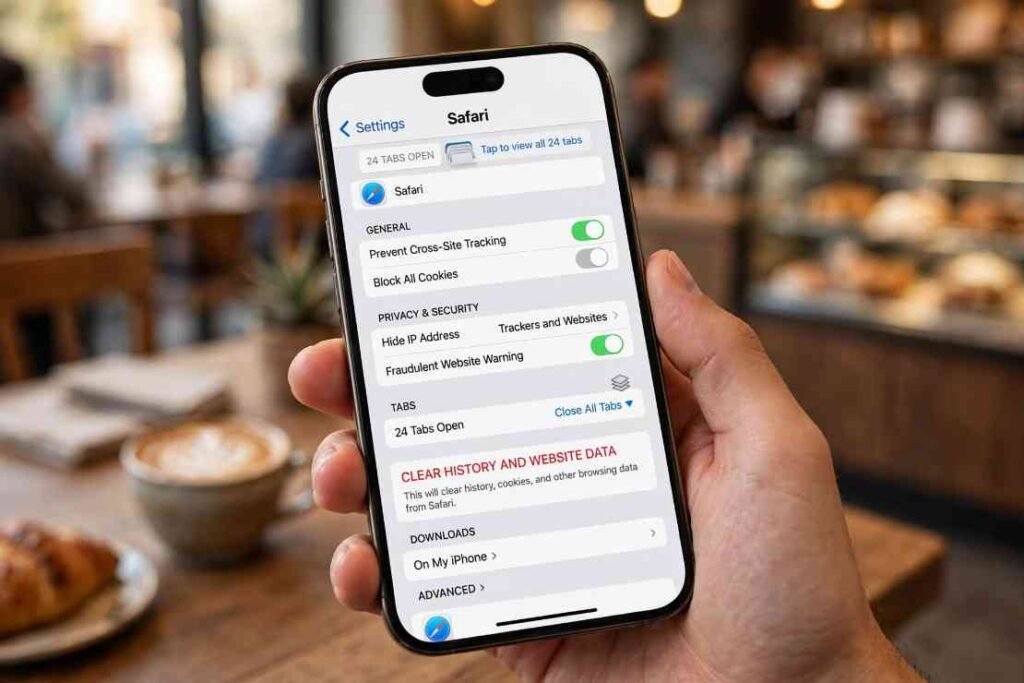
Safari quietly hoards website scripts, preview thumbnails, and offline reading lists inside System Data. Open Settings – Apps – Safari (or Settings – Safari if you are running an older version of iOS) and tap Clear History and Website Data. Select All History, toggle on Close All Tabs, and confirm the prompt.
Delete and Reinstall Cache-Hoarding Streaming Apps
Audio and video apps are the worst offenders for disguising local downloads as System Data. When I stream lossless playlists through my favorite noise cancelling earbuds under 50 during flights, Spotify routinely dumps 4 GB to 6 GB of encrypted audio chunks into my system partition.
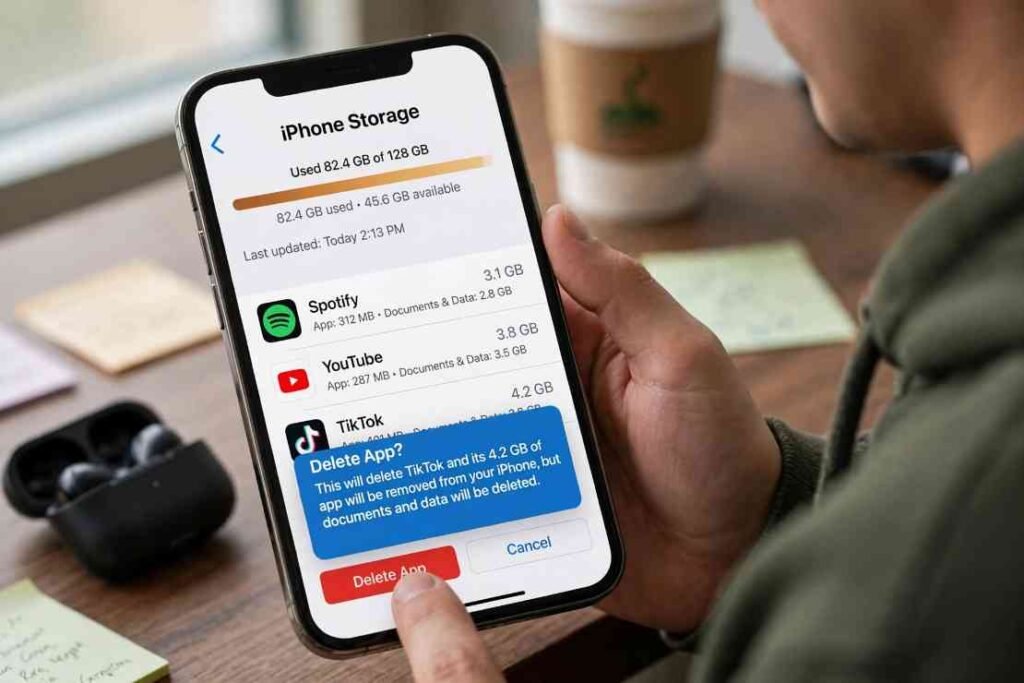
Tapping “Offload App” will not fix this because offloading keeps your cached documents intact. Instead, open Settings – General – iPhone Storage, tap your heaviest streaming or social apps (like Spotify, Discord, TikTok, or YouTube), and choose Delete App. Reinstall them from the App Store afterward to start with a clean slate.
Remove Leftover iOS Update Installers and Force Restart
Sometimes iOS downloads an operating system update in the background, fails to verify it, and leaves a 6 GB installer sitting idle on your drive. Scroll through your app list inside Settings – General – iPhone Storage for an entry labeled iOS Software Update. Tap it and hit Delete Update.
Once you finish clearing apps and updates, force restart your phone to flush active RAM caches:
- Quickly press and release the Volume Up button.
- Quickly press and release the Volume Down button.
- Press and hold the Side button until the Apple logo appears on screen.
Unlock your phone, open iPhone Storage, and leave the screen awake for two minutes so the storage bar refreshes.
Step 2: Lock In Settings to Stop System Data From Ballooning Again
Cleaning your phone once does nothing if iOS immediately starts hoarding new attachments the next morning. Change these three default settings to keep System Data permanently under control.
Cap iMessage History and Mail Sync Windows
By default, iOS keeps every video, GIF, and meme you have ever received in iMessage forever. Even when those attachments live in iCloud, local thumbnails and previews bloat your system partition. Go to Settings – Apps – Messages – Keep Messages and switch the setting from Forever to 1 Year or 30 Days.
Next, shrink your email cache. Open Settings – Apps – Mail – Mail Accounts, tap your primary email account, and change Mail Days to Sync to 30 Days or fewer.
Switch Photos to Optimized Storage
High-resolution Live Photos and 4K ProRes clips create massive local cache indexes. Open Settings – [Your Name] – iCloud – Photos, verify that Sync this iPhone is enabled, and select Optimize iPhone Storage. As outlined in Apple Support’s official iCloud storage documentation, this forces your iPhone to replace full-resolution local files with lightweight previews whenever your device needs breathing room.
Step 3: The Nuclear Option That Wipes Corrupted System Logs
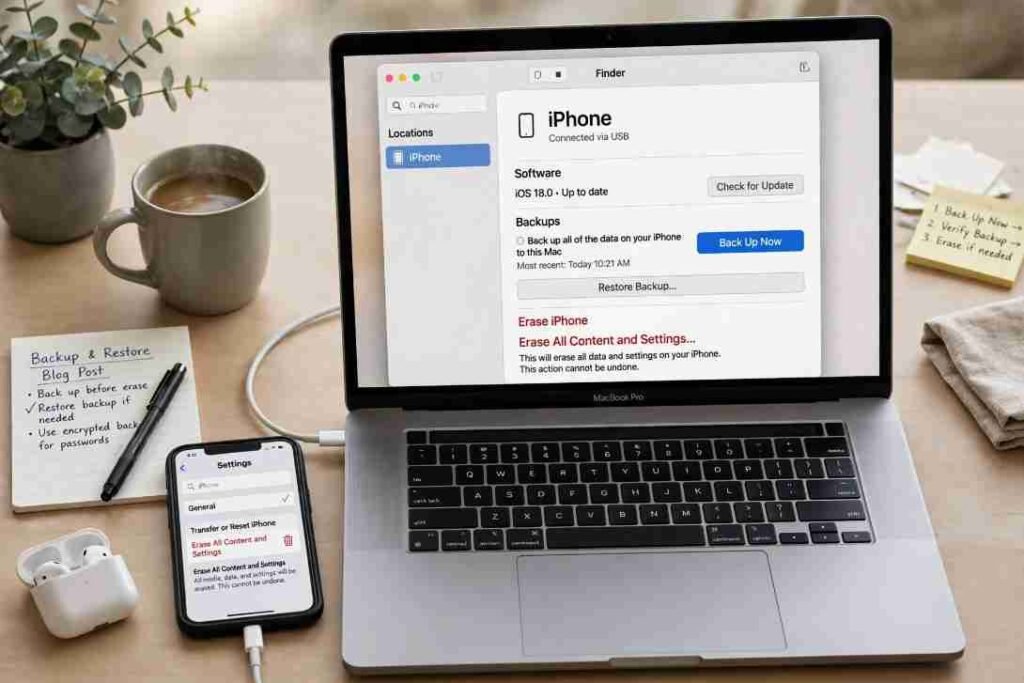
If your System Data remains stuck above 20 GB after trying every manual fix, you likely have corrupted index files left over from past iOS upgrades. As Macworld notes in its iPhone storage troubleshooting guide, backing up and restoring your device is the only way to purge stubborn system logs completely.
- Create a verified backup: Connect your iPhone to a Mac (via Finder) or a Windows PC (via the Apple Devices app) and click Back Up Now. If you don’t have a computer handy—even if you normally use iPad as second monitor for PC Windows setups—you can use iCloud Backup instead. Apple even offers free temporary iCloud storage for 21 days under Settings – General – Transfer or Reset iPhone if your current plan is full.
- Erase your iPhone: Go to Settings – General – Transfer or Reset iPhone and tap Erase All Content and Settings. Enter your passcode and Apple Account password to wipe the drive.
- Restore your backup: Follow the setup prompts until you reach the Transfer Your Apps & Data screen, then restore from your computer or iCloud backup. Your apps, photos, and messages will return without the 18+ GB of dead system weight.
Why You Should Skip the Viral “Change the Date” Trick
You will see older forum threads recommending that you turn on Airplane Mode, set your iPhone’s clock one year into the future, and wait 60 seconds to force caches to expire. Do not do this. As Wired warns in its guide to managing iPhone storage, manually spoofing your system clock breaks SSL security certificates, corrupts iMessage sync timestamps, and frequently triggers permanent data loss if your message retention isn’t set to Forever. Worse, System Data usually bounces right back to its original size the moment you restart your phone.
Frequently Asked Questions
1. What is a normal size for System Data on an iPhone?
A healthy iPhone typically uses between 5 GB and 12 GB of System Data depending on your iOS version and installed apps.
2. Does offloading apps clear System Data on iPhone?
No, offloading removes the app binary while preserving its cached documents and data, so you must delete and reinstall the app instead.
3. Why does my iPhone System Data keep growing every day?
Continuous background streaming from apps like Spotify, TikTok, and Safari—combined with “Forever” iMessage retention—causes daily cache buildup.
4. Will resetting all settings clear System Data?
Tapping “Reset All Settings” only resets Wi-Fi passwords and preferences; you must choose “Erase All Content and Settings” after backing up to clear System Data.
Stop Letting Phantom Gigabytes Hold Your iPhone Hostage
You do not need to buy a pricier iPhone just because iOS forgot to take out its own digital trash. Start by deleting your heaviest streaming apps and capping your iMessage history to one year—that 10-minute sweep solves the problem for eight out of ten phones. If your storage bar still refuses to budge, run a clean backup-and-restore tonight and enjoy having tens of gigabytes back where they belong.