
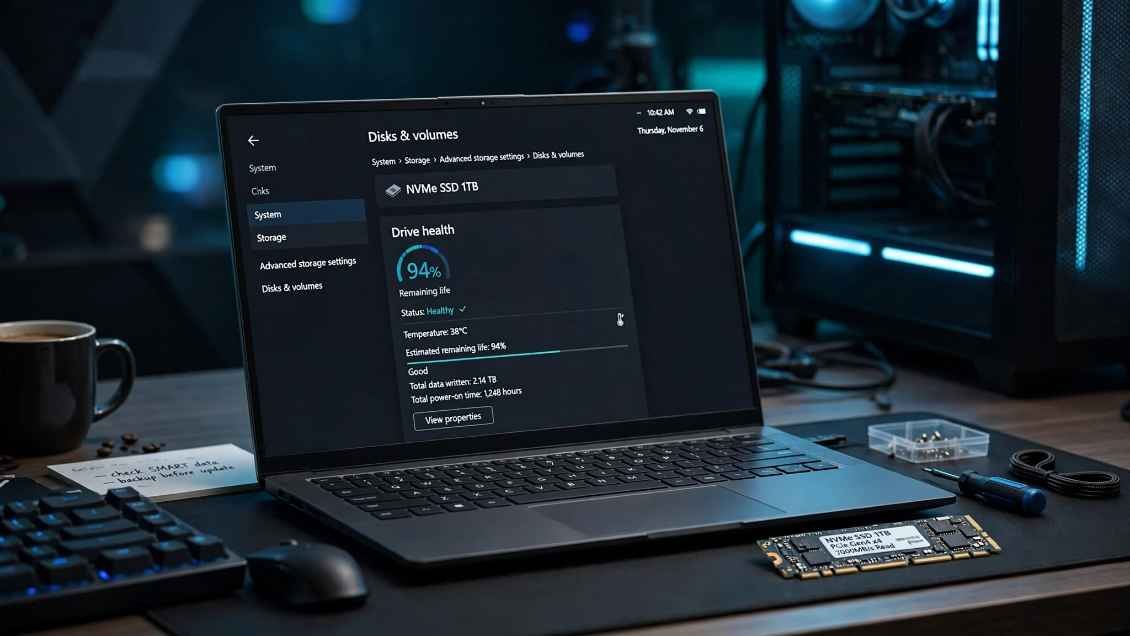
Modern solid-state drives do not click or grind when they die. They drop into read-only mode, vanish from your BIOS, or brick your file table without warning. Learning how to check solid state drive health on windows 11 gives you the lead time needed to salvage critical data before NAND flash cells exhaust their finite write cycles.
Windows 11 includes native monitoring tools for fast health audits, though their diagnostic depth varies dramatically depending on whether your drive runs on the NVMe or legacy SATA interface.
Native Windows 11 Storage Settings (Best for NVMe Drives)
Microsoft integrated a dedicated hardware health dashboard directly into Windows 11. It pulls telemetry directly from the Non-Volatile Memory Express (NVMe) interface. If your primary boot drive sits in an M.2 slot wired through PCIe lanes, this is your fastest native check.
Access the dashboard through this path:
- Open Settings using the shortcut Win + I.
- Select System from the left pane, then click Storage.
- Click Advanced storage settings to expand the hidden options.
- Select Disks & volumes.
- Locate your SSD, highlight it, and click Properties.
- Scroll down to the Drive health section.
Decoding the Drive Health Readout: Spare Capacity vs. Wear
The dashboard reveals three core data points: Estimated remaining life, Available spare, and Temperature.
+——————————————————-+
| Drive Health |
+——————————————————-+
| Estimated remaining life: 94% |
| Available spare: 100% |
| Temperature: 41°C / 106°F |
+——————————————————-+
Estimated remaining life reflects a percentage based on manufacturer wear-leveling counts. If you write tens of gigabytes daily while editing footage or running local databases, this number drops steadily over several years. A drop to 90% is normal wear.
Available spare represents your drive’s emergency buffer. Solid-state drives preserve extra flash memory beyond their advertised user capacity. When active cells degrade, the internal memory controller isolates the bad blocks and shifts operations to spare blocks.
According to the official specifications from NVM Express, if your Available spare drops below 100%, physical flash cells are already burning out faster than normal wear models predict. Treat any drop in Available Spare as an immediate trigger to run offsite backups.
Why Your SATA SSD Hides Its Health in Settings
If your drive connects through a SATA cable or sits inside an older 2.5-inch enclosure, Windows 11 often leaves the Drive Health section blank. The native Settings dashboard relies specifically on standard NVMe health telemetry commands.
Older SATA drives communicate using legacy AHCI drivers. These controllers handle Self-Monitoring, Analysis, and Reporting Technology (S.M.A.R.T.) differently across vendors. To check those drives, you must query the operating system at the management layer or deploy dedicated inspection software.
Quick Health Triage Using PowerShell
When you manage multiple drives across internal ports or high-speed enclosures connected over thunderbolt 4, clicking through nested Settings menus wastes time. The Windows Storage module in PowerShell queries physical disk controllers across every interface simultaneously.
Right-click the Start menu button and select Terminal (Admin). Run this command:
PowerShell
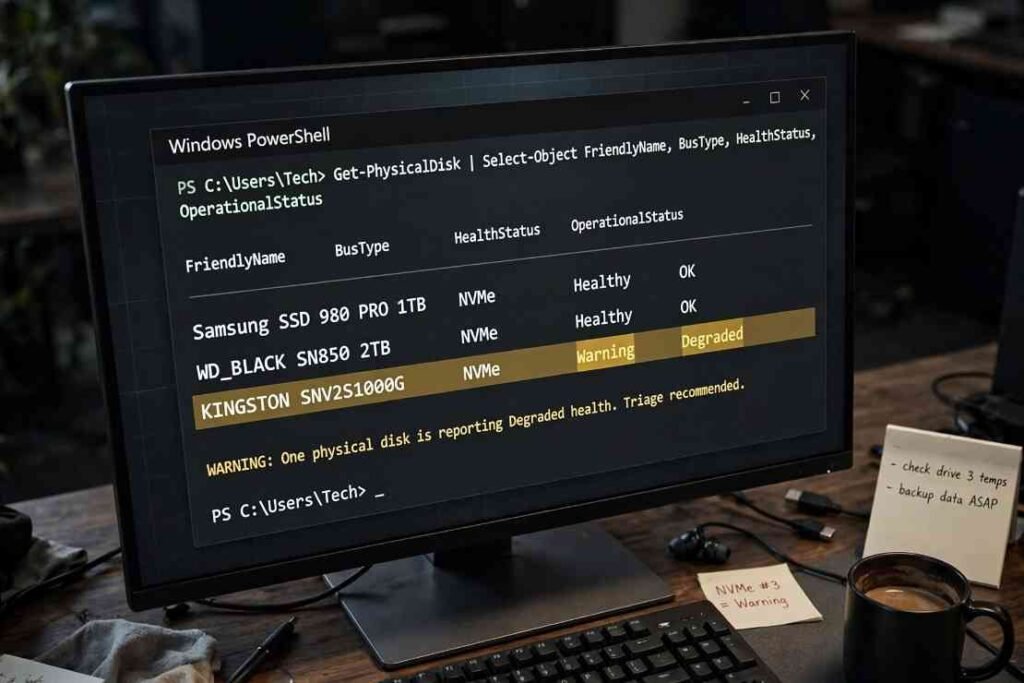
Get-PhysicalDisk | Select-Object FriendlyName, BusType, HealthStatus, OperationalStatus
Review the output:
- HealthStatus reports high-level statuses: Healthy, Warning, or Unhealthy.
- OperationalStatus confirms communication health: OK, Degraded, or Predictive Failure.
This command pulls hardware statuses directly from the Windows Storage Management API documented on Microsoft Learn. It strips away vendor ambiguities. If the terminal flags any drive as Warning or Degraded, the storage controller has detected unrecoverable hardware errors.
Why the Legacy Command Prompt Check Is Obsolete
Many guides still recommend opening Command Prompt and running wmic diskdrive get status. Stop relying on this command.
Microsoft officially deprecated the Windows Management Instrumentation Command-line (WMIC) utility in modern Windows 11 builds. Beyond deprecation, the command returns a binary result: it prints either OK or Pred Fail.
The underlying problem lies in the trigger threshold. An SSD controller will return an OK status even when write endurance has degraded down to 2% and available spare blocks are exhausted. The firmware only broadcasts Pred Fail when internal write operations begin outright failing. Relying on WMIC is the digital equivalent of waiting for smoke before checking your engine oil.
Deep Diagnostic Telemetry: Tracking Real Wear and TBW
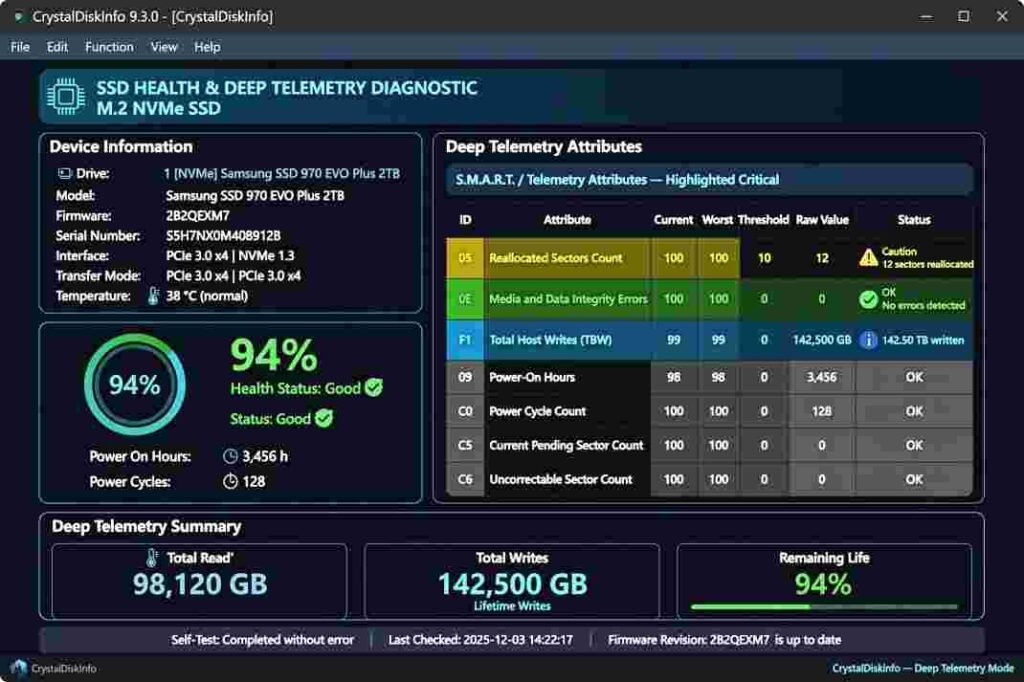
To extract raw hardware metrics—including exact read/write volumes and reallocated sectors—you need a dedicated S.M.A.R.T. utility. The open-source diagnostic application CrystalDiskInfo remains the benchmark for low-overhead drive inspections.
Download the portable standard edition, extract the archive, and launch the 64-bit executable. The interface immediately parses your drive’s raw sensor tables:
| Raw Hex Attribute | Diagnostic Name | What It Indicates |
| 05 | Reallocated Sectors Count | Physical flash blocks retired due to write/read errors. |
| 0E | Media and Data Integrity Errors | Unrecoverable data corruption incidents. Must remain 0. |
| F1 | Total Host Writes | Total data written across the drive’s operational lifespan. |
Calculating Remaining Lifespan from TBW
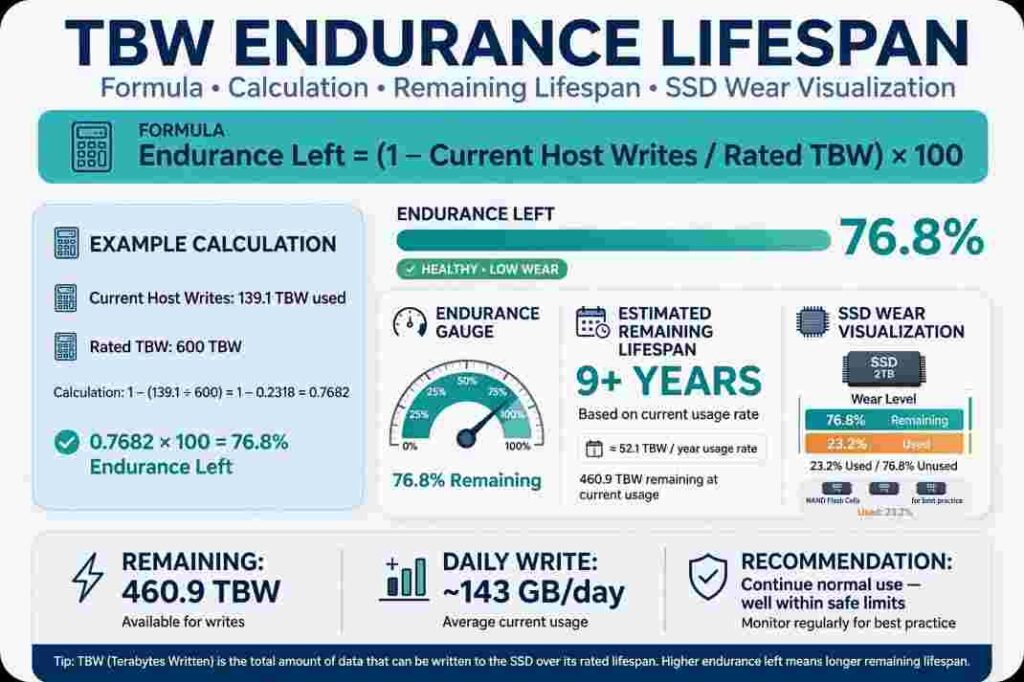
Manufacturers rate consumer solid-state drives using Total Bytes Written (TBW). A standard 1TB NVMe drive typically ships with a 600 TBW warranty threshold.
During a routine desk maintenance session—right around the time I sat down to clean mechanical keyboard switches without desoldering—I ran a full diagnostic check on a three-year-old workstation drive. CrystalDiskInfo revealed:
- Total Host Writes: 142,500 GB (~139.1 TBW)
- Power On Hours: 11,400 hours
- Drive Rating: 600 TBW
Calculate the remaining write runway using this formula:
$$\text{Endurance Left (\%)} = \left( 1 – \frac{\text{Current Host Writes}}{\text{Rated TBW}} \right) \times 100$$
$$\left( 1 – \frac{139.1}{600} \right) \times 100 = 76.8\%$$
At an accumulation rate of ~46 TBW per year, the drive retains over nine years of rated flash endurance under identical workloads. Calculating your actual TBW burn rate tells you whether a 90% health readout demands an immediate replacement or simply represents normal operational wear.
Frequently Asked Questions
1. Can Windows 11 repair a failing solid state drive?
No, Windows cannot fix worn-out flash memory blocks; you must back up your files and replace the physical drive.
2. Why does my new SSD already show 99% health in Windows 11?
Factory quality-assurance testing and operating system formatting consume a tiny fraction of initial write endurance before retail packaging.
3. Does defragmenting an SSD improve its health on Windows 11?
Never defragment an SSD; doing so causes unnecessary writes that wear down flash cells without providing speed benefits.
4. What is a safe operating temperature for an M.2 NVMe SSD?
Sustained operating temperatures between 35°C and 60°C are safe, while temperatures exceeding 70°C trigger thermal throttling and accelerate component wear.
Don’t Wait for the Silicon Funeral
NAND flash memory degrades silently until read-only controllers lock your file partitions forever. Check your NVMe status through the Windows 11 Settings app once every quarter, and verify your cumulative Total Bytes Written using dedicated diagnostic tools every year. When your available spare blocks dip below factory thresholds, do not troubleshoot—clone your installation to fresh silicon immediately.