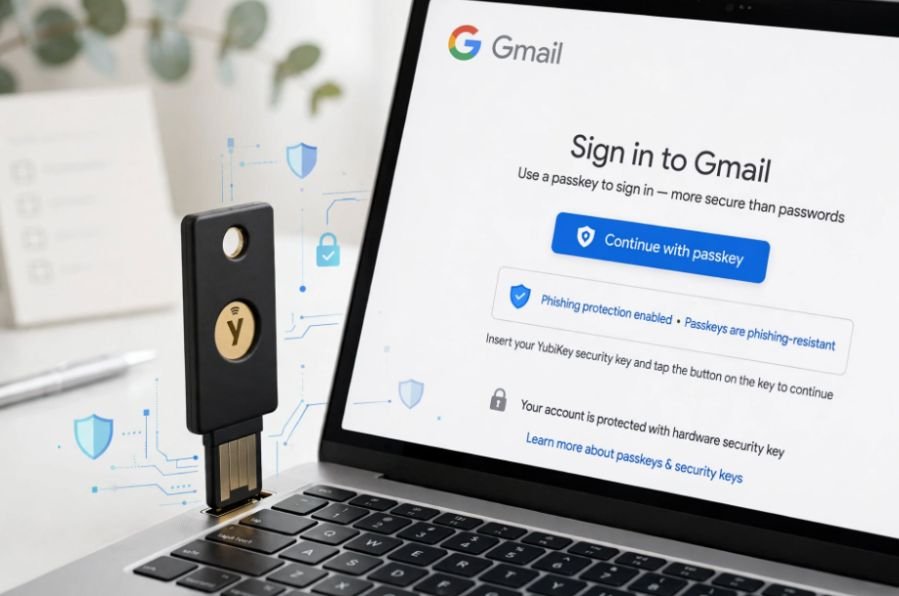
A single sophisticated phishing page or session-hijacking cookie can bypass traditional SMS codes and authenticator apps in seconds. When I decided to eliminate credential theft on my primary Google account, physical authentication was the only bulletproof answer. Learning how to set up hardware security key for gmail transforms your account access from a vulnerable software challenge into an un-phishable physical handshake.
Hardware keys rely on open cryptography standards backed by the FIDO Alliance. The device proves your identity by confirming that the browser’s domain strictly matches google.com before handing over a cryptographic signature. Fake login portals cannot steal what your physical key refuses to sign.
Why Hardware Keys Trump Traditional 2FA
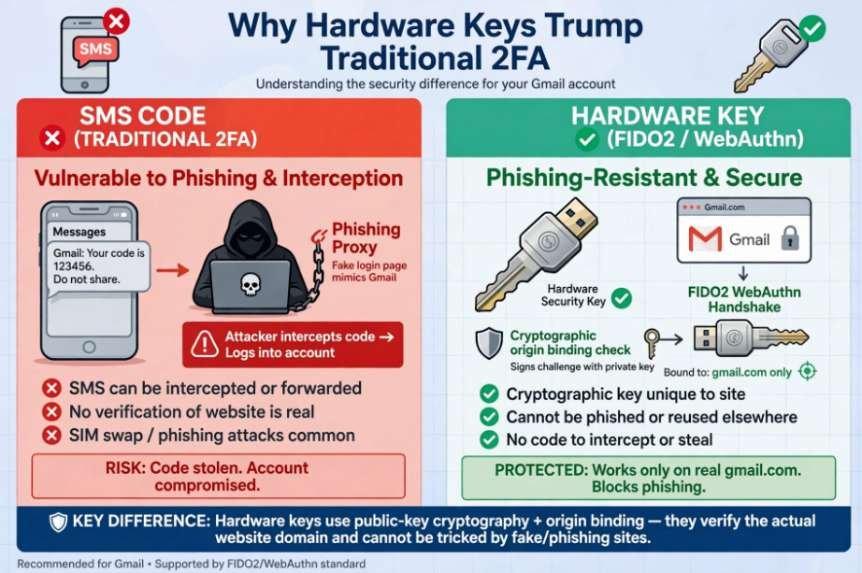
Most account takeovers don’t happen because of brute force; they succeed through adversary-in-the-middle (AitM) phishing proxies. Push notifications and SMS codes authenticate whatever prompt you approve, even if an attacker routes your session through a spoofed proxy server.
Hardware security keys operate under cryptographic origin binding. The Cybersecurity and Infrastructure Security Agency (CISA) classifies FIDO2/WebAuthn hardware tokens as the gold standard for phishing-resistant multi-factor authentication. When I plug in a YubiKey or Google Titan Key, the key and the browser negotiate a challenge-response handshake. If the domain in the address bar is even one character off, the transaction aborts instantly.
Prerequisites Before You Enroll Your Key
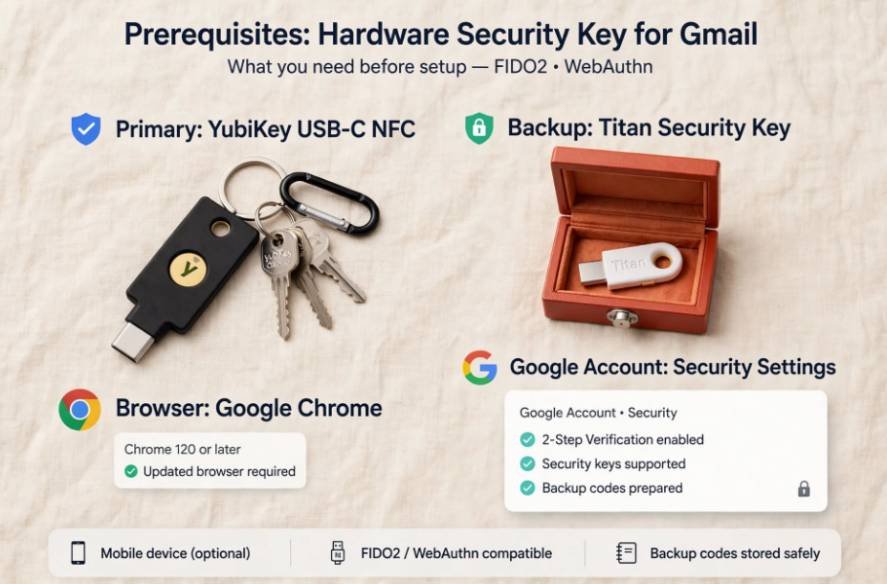
Before touching your Google Account settings, gather your hardware:
- Two FIDO2/WebAuthn keys: Never configure a single security key alone. If you lose your only key on a commute, regaining access involves extensive delays. Keep a primary key (like a USB-C/NFC model) on your keyring and a secondary backup key stored securely in a fireproof safe.
- A compatible desktop browser: Use the latest build of Chrome, Firefox, Safari, or Edge.
- Your current Google password and 2-Step Verification: Ensure you can log into your account dashboard without friction .
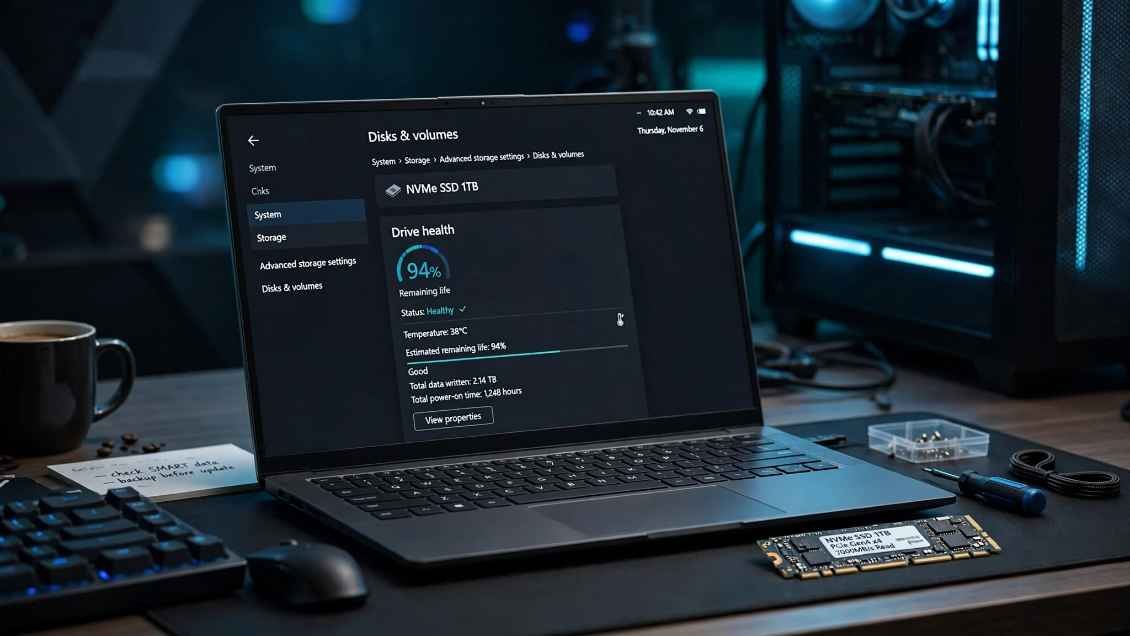
Before registering your security key, make sure your computer is functioning reliably by learning how to check solid-state drive health on Windows 11, especially if you use a Windows PC for account management and security tasks.
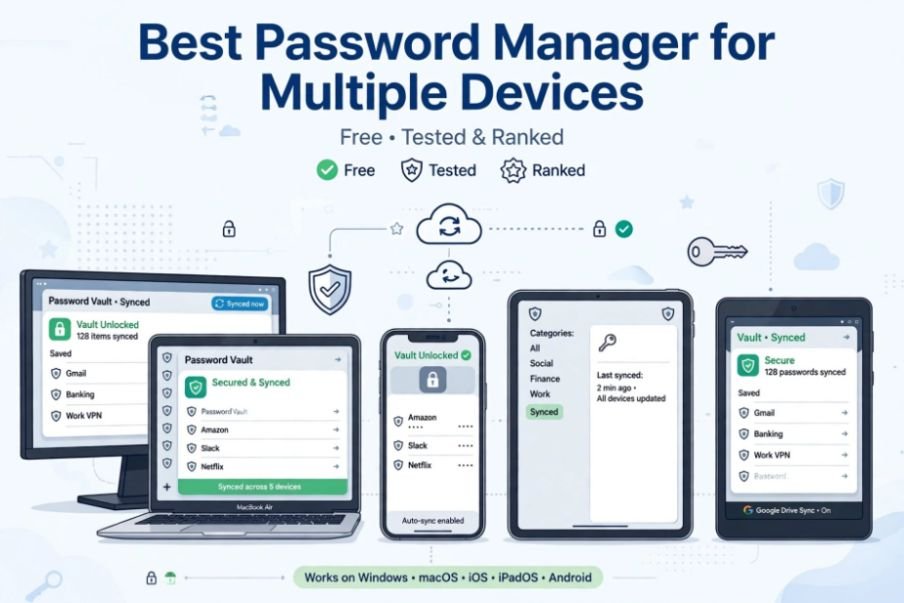
If you handle sensitive client accounts across various operating systems, pairing your hardware tokens with a reputable password manager for multiple devices provides a synchronized workflow that prevents master credential leaks.
Step-by-Step: Registering Your Security Key with Google
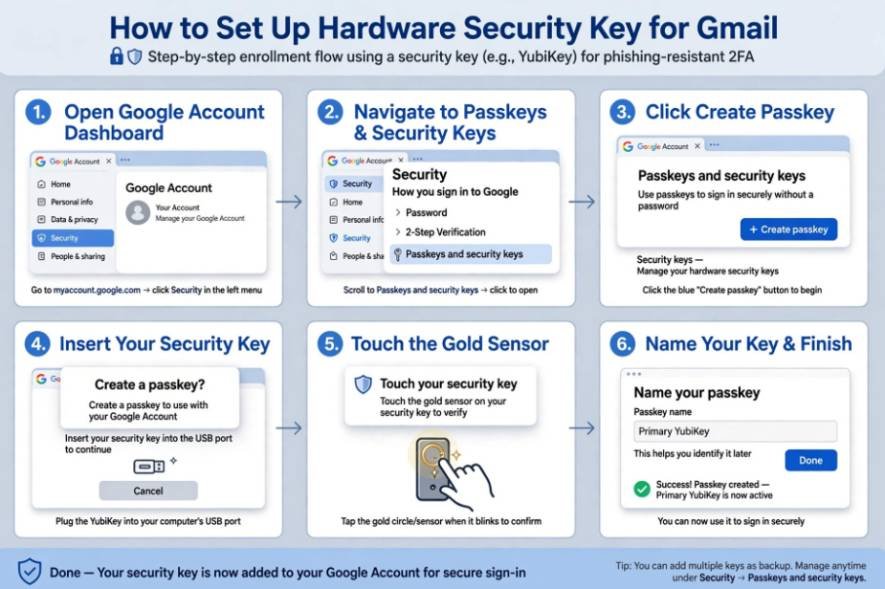
Google has streamlined its security settings by folding hardware keys into its unified passkey infrastructure. You can enroll your physical key using either of two pathways depending on how you prefer to authenticate.
Method 1: Enrolling as a FIDO2 Passkey (Recommended)
This modern path stores a device-bound passkey directly onto your hardware token’s secure element. It allows passwordless authentication using just the key and a local PIN.
First, open your browser and navigate to the Google Account Dashboard. Click on Security from the left-hand navigation rail. Under the section titled How you sign in to Google, select Passkeys and security keys.
Click the blue Create a passkey button. Your operating system will generate an enrollment pop-up. If the prompt defaults to your computer’s built-in platform authenticator (like Windows Hello or Touch ID), select Use another device or Security key.
Insert your security key into an available USB port. If your operating system prompts you, create a 4-to-8 digit hardware PIN. This PIN remains stored locally on the key itself and locks the token if it is ever misplaced. Touch the gold capacitive sensor or flashing contact button on the side of your key. When Google asks to save the credential, enter a descriptive label such as Primary YubiKey 5C NFC.
Method 2: Adding as a Legacy Second Step
If your key does not support FIDO2 PIN storage or if you prefer typing your standard master password before tapping hardware, you can enroll the key strictly as a second factor.
From the Security menu, select 2-Step Verification. Authenticate with your existing credentials, scroll toward the bottom of the page, and select Security Keys. Click Add security key, plug in your physical device, tap the contact disc when your browser prompts you, and save the profile under an identifiable name.
Bulletproofing Account Recovery: The Dual-Key Rule
The greatest operational risk with hardware security is accidental self-lockout. Once you register your primary key, immediately complete these two safety steps:
Enrolled Primary Key (Keyring)
│
├──► Register Secondary Hardware Key (Safe Deposit / Home Desk)
└──► Generate & Print 10 Google Backup Codes (Offline Storage)
Immediately select Create a passkey or Add security key again to register your second unit. Label it clearly, such as Backup Titan Key – Safe. Store this key in a secure, climate-controlled spot away from your travel bags.
Next, scroll down the 2-Step Verification page to Backup codes. Generate a fresh pack of 10 eight-digit emergency codes. Print them out on physical paper, store them with your backup key, and keep them completely off cloud storage.
Be aware of Google’s 7-Day Security Rule. When you introduce a brand-new hardware key, Google’s risk engine may place a temporary one-week hold on using that specific token to recover accounts or authorize critical security updates from unfamiliar IP addresses. Enrolling your backup keys on your home network today avoids friction later.
Enrolling in Google’s Advanced Protection Program
For journalists, executives, and high-visibility administrators, Google offers the Advanced Protection Program. This free service enforces the strictest identity controls Google supports.
Once enrolled, Google disables SMS verification, voice calls, and standard push prompts entirely. You must present a registered hardware key or passkey on every untrusted sign-in.
Advanced Protection blocks most third-party applications from requesting access to your Gmail messages and Google Drive documents. Chrome also enforces deep file inspection, preventing the execution of unverified scripts or unsigned binaries that attackers use to drop session-stealing malware.
Mobile Sign-Ins and On-the-Go Authentication
Authenticating on an iPhone or Android phone does not require bulky adapters if your key supports NFC. When a Google prompt appears on your mobile device, select the physical key option, hold the key flat against the top edge of your phone near the internal antenna, and wait for the brief haptic vibration.
If your phone frequently struggles to scan NFC tags or experiences erratic connectivity drops, inspect running services to ensure you do not have unoptimized background apps draining battery and choking OS communication channels. For iPads or laptops without NFC, a USB-C hardware key registers instantly via direct port insertion.
Locking Down the Castle
A password alone is no longer an adequate security boundary. By spending ten minutes learning how to set up a hardware security key for Gmail, you shut the door on remote phishing campaigns and automated credential stuffers.
Order your primary and backup keys from an authorized distributor, register both using Google’s passkey menu, file away your paper recovery codes, and enjoy the peace of mind that comes with truly un-phishable hardware security.
Frequently Asked Questions
1. What happens if I lose my primary hardware security key?
Sign in using your secondary backup security key or an offline emergency backup code, then immediately delete the lost key from your Google Account settings.
2. Can I use a single hardware security key across multiple Google accounts?
Yes, a single FIDO2 security key can store passkeys and credentials for multiple personal, business, and Google Workspace accounts simultaneously.
3. Do hardware security keys require an internet connection or batteries to work?
No, hardware security keys draw power directly from your device’s USB port or NFC field and require no internal batteries or cellular service.
4. Can someone access my account if they steal my physical security key?
No, the thief would still need your account username, your master password, or the local physical PIN assigned to the key during setup.