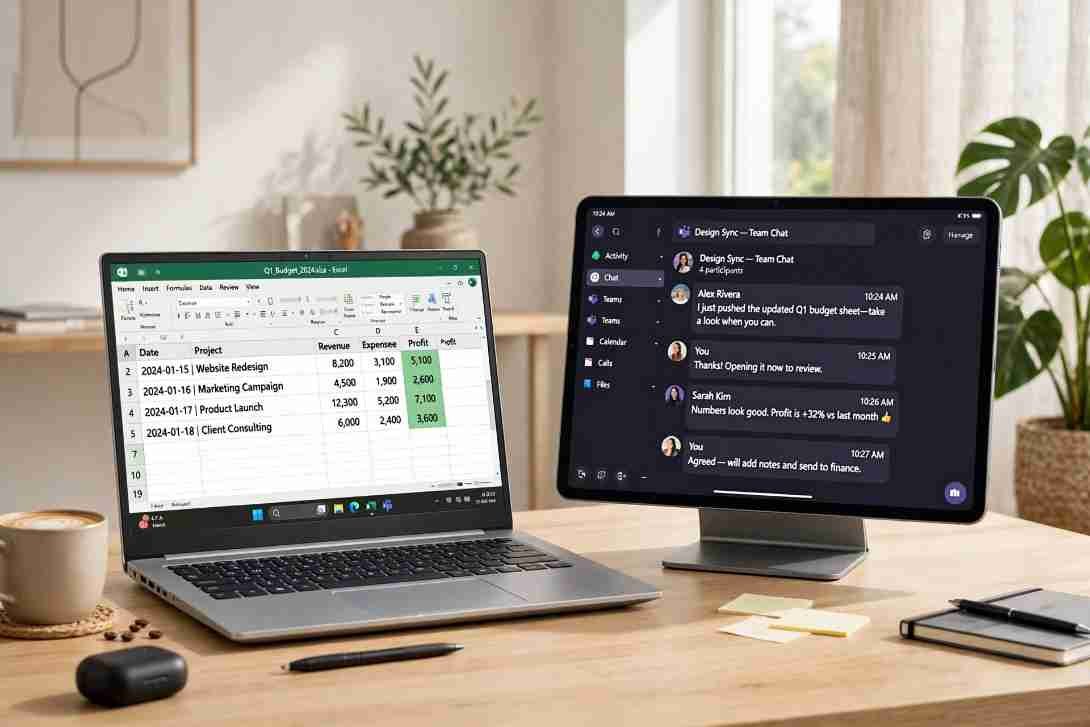
Learning how to use iPad as second monitor for PC Windows takes less than ten minutes once you skip Apple’s ecosystem restrictions. Because Apple’s native Sidecar feature only communicates with macOS devices, Windows users must bridge the gap using virtual display drivers or a physical video capture card.
Over the past year, I have traveled with a Windows 11 laptop and a 12.9-inch iPad Pro as my mobile dual-screen workstation. Testing every popular utility on hotel routers, home networks, and corporate-locked machines taught me exactly which setups deliver smooth cursor tracking—and which ones stutter.
Why Windows Needs Workarounds (And Which Method Fits Your Desk)
Apple built Sidecar exclusively for Mac hardware, leaving Windows 10 and Windows 11 without native AirPlay display extension. To turn your tablet into an external monitor, your PC needs a virtual graphics adapter that encodes your desktop into a video stream and sends it over your local network or a USB cable.
Each connection type trades convenience for speed. Wireless apps keep your desk cable-free, wired USB apps eliminate network lag, and hardware capture cards bypass IT administrator blocks entirely.
| Method | Cost | Connection Type | Best For | Tested Latency |
| spacedesk | Free | Wi-Fi or USB | Everyday multitasking & touch input | ~35ms (Wi-Fi) / ~18ms (USB) |
| Splashtop Wired XDisplay | Free / Paid | USB Cable Only | Video playback & zero-drop stability | ~15ms (USB) |
| HDMI Capture Card | ~$15–$25 | HDMI + USB-C | Work PCs blocking software installs | ~25ms (Hardware) |
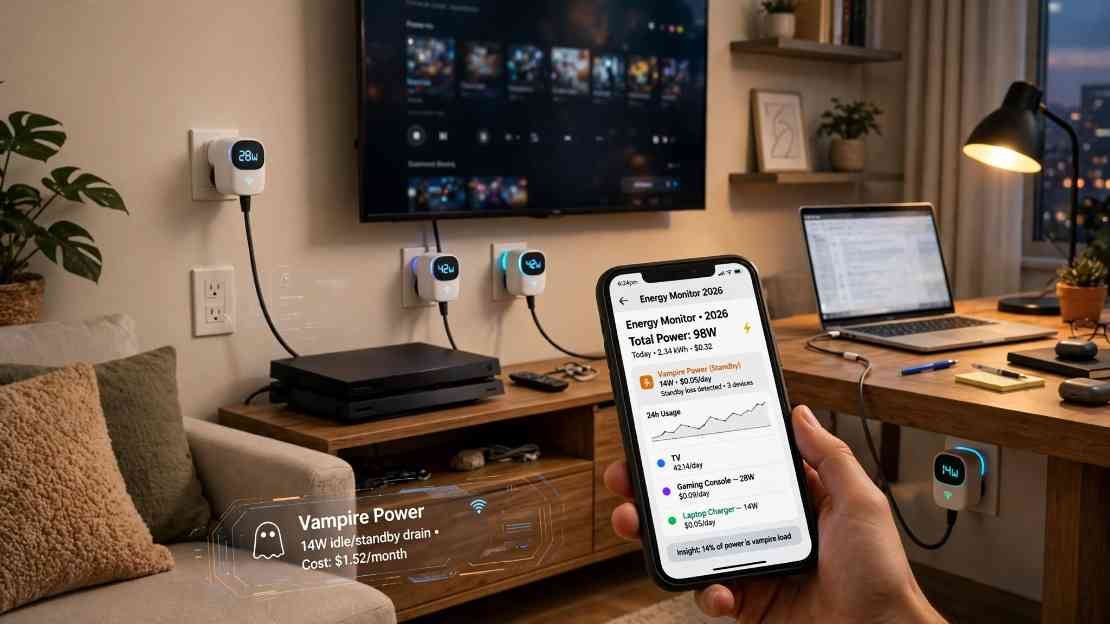
If you track the electricity draw of your home office with a smart plug for monitoring energy consumption, adding an iPad screen barely moves the needle—pulling roughly 8 to 12 watts under full brightness compared to 45 watts for a standard 24-inch desktop monitor.
Method 1: Wireless or Wired Setup Using spacedesk (Best Free Option)
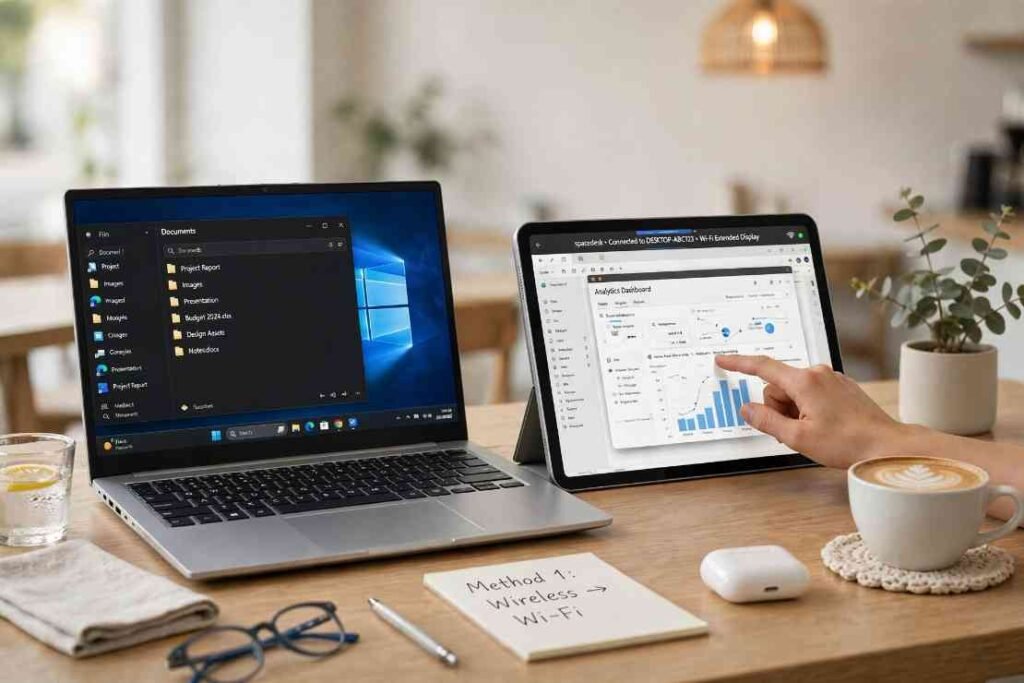
When I need a quick second screen at a coffee shop without digging for cables, spacedesk is my default tool. It turns your Windows machine into a primary display server and supports full touchscreen gestures on the iPad.
Step 1: Install the Windows Driver and iPad App
First, download the Windows Driver installer directly from the official spacedesk documentation page and run the setup wizard on your PC. During installation, Windows Defender Firewall will ask for network permissions; approve both private and public access so your tablet can locate your computer.
Next, open the Apple App Store on your iPad and install the free spacedesk Multi Monitor App. Launch the PC driver console from your Windows system tray to confirm the server status reads “ON.”
Step 2: Connect Over Wi-Fi or USB Cable
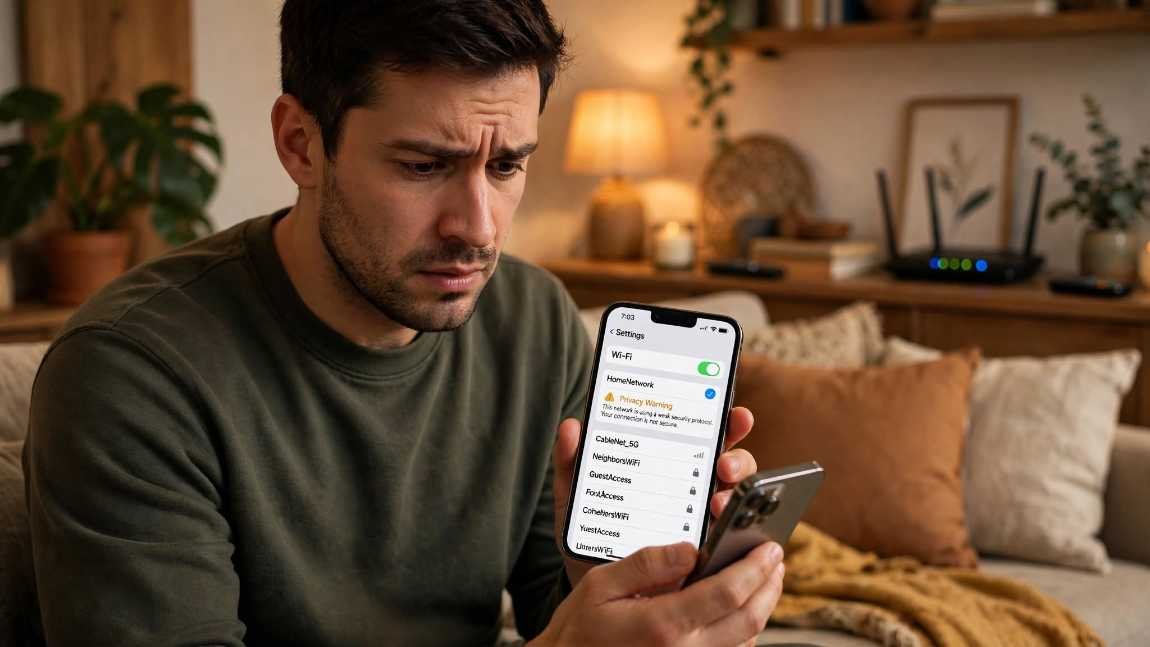
For a wireless link, connect both devices to the same 5GHz Wi-Fi band. Open the iPad app, tap your PC’s local IP address when it appears on screen, and your desktop will immediately extend onto the tablet. If your router flags an encryption alert or you notice your home wifi showing privacy warning messages on iPadOS, switch to a 5GHz WPA3 network or use a wired connection instead.
For a faster wired connection, install iTunes or the Apple Devices app from the Microsoft Store so Windows has the proper Apple Mobile Device USB drivers. Open the spacedesk Driver Console on your PC, expand Communication Interfaces, and check the box next to USB Cable iOS. Plug your Lightning or USB-C cable between both devices, tap Trust on the iPad, and the display connects automatically.
Method 2: Low-Latency USB Connection via Splashtop Wired XDisplay
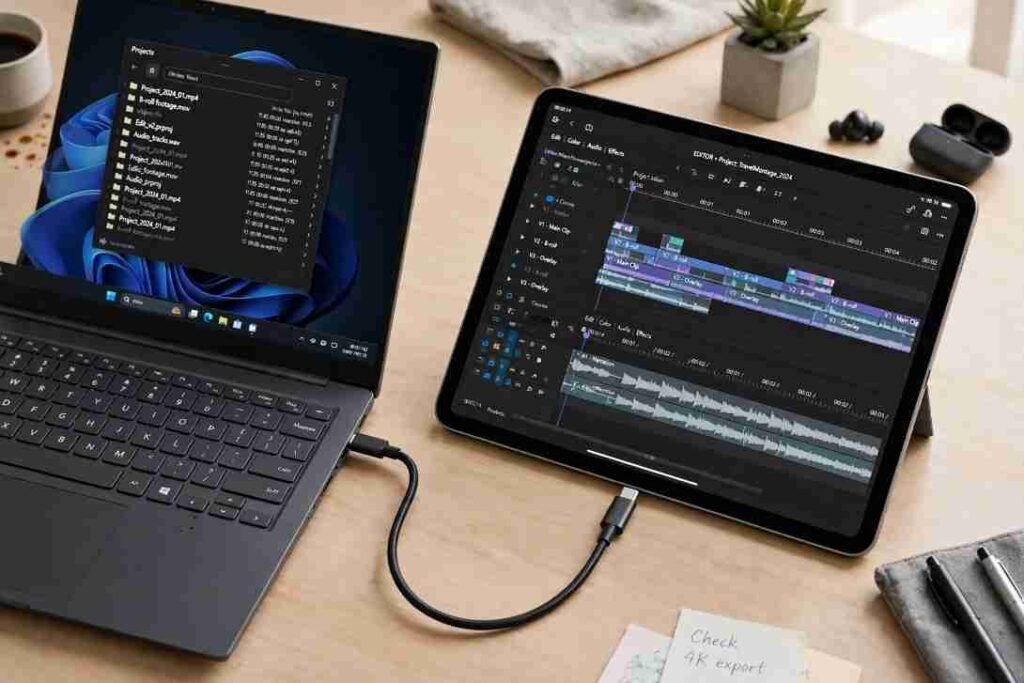
Wi-Fi display streaming works fine for Slack, email, and spreadsheets, but crowded apartment networks cause noticeable frame drops. Whenever I edit timelines or watch reference videos on my tablet, I switch to Splashtop Wired XDisplay.
Setting Up the Desktop Agent and Apple Drivers
Visit the Splashtop Wired XDisplay product page and install the Windows desktop agent on your PC. Like spacedesk, Splashtop relies on Apple’s proprietary USB communication protocols, so make sure iTunes or the Apple Devices utility is already installed on your computer before plugging anything in.
Download the matching Splashtop Wired XDisplay app on your iPad, launch both programs, and connect your charging cable. On my Windows 11 test machine, this direct USB-C link consistently maintained a steady 60Hz refresh rate with virtually zero compression artifacts around small text.
Method 3: Zero-Software Workaround with an HDMI Capture Card
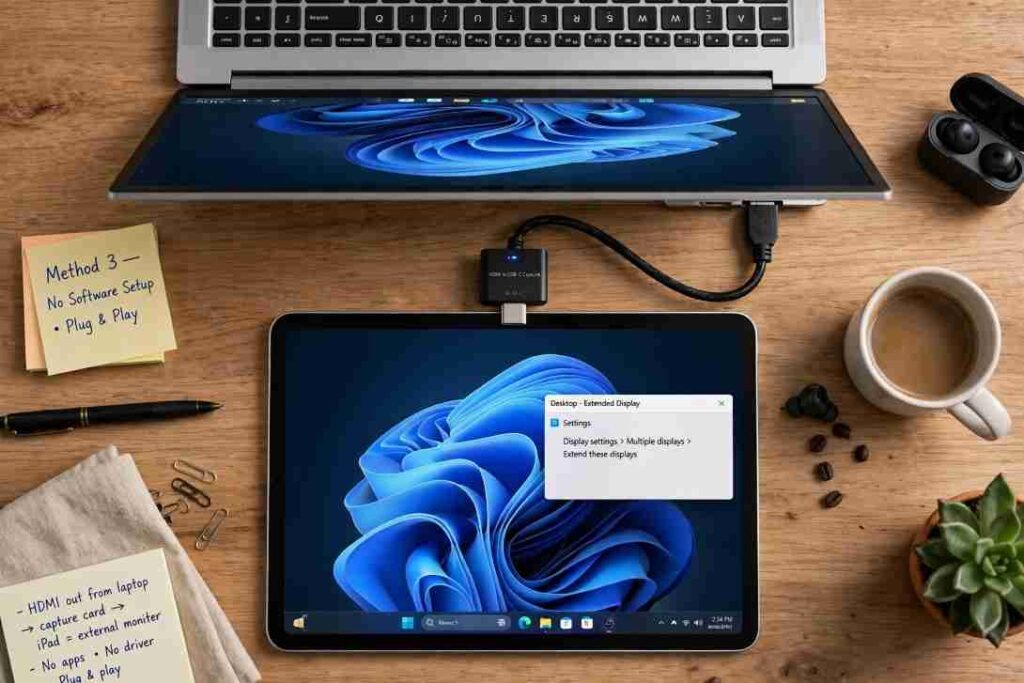
Corporate laptops frequently block third-party virtual display drivers behind administrator passwords. If your IT department locks down software installations, you can still use any USB-C iPad running iPadOS 17 or later as a plug-and-play external monitor.
Hardware Needed for Locked-Down Work Laptops
Apple introduced UVC (USB Video Class) webcam and capture support in iPadOS 17, allowing the tablet to accept external HDMI feeds directly through its charging port. You only need two inexpensive pieces of hardware:
- A standard HDMI cable (or USB-C to HDMI adapter if your PC lacks a full-sized HDMI port).
- A USB-C HDMI video capture card (widely available online for under $20).
Plug the HDMI cable into your Windows PC’s video output and connect the opposite end into the capture card. Insert the capture card into your iPad’s USB-C port, then open a free UVC viewer app such as Camo Studio or Orion from the App Store. Windows treats the capture card like an ordinary external monitor, requiring zero drivers or software on your computer.
Configuring Windows Display Settings for Sharp Text
Out of the box, Windows almost always mirrors your primary laptop screen onto the iPad and renders icons at microscopic sizes. Taking sixty seconds to calibrate your display settings fixes both problems.
Extending Your Desktop and Fixing DPI Scaling
Right-click any empty space on your Windows desktop and select Display settings, following Microsoft’s official multiple-monitor configuration steps. Scroll down to the Multiple displays dropdown menu, change it from Duplicate these displays to Extend these displays, and click Keep changes.
To make cursor movement feel natural across your desk, follow these adjustments:
- Match physical layout: Click Identify to see which screen Windows labels as 1 and 2, then drag the numbered boxes to match where your iPad sits beside your laptop.
- Boost DPI scaling: Because iPads pack Retina-level pixel densities into compact screens, default 100% scaling makes menus unreadable. Select your iPad display in the settings window and raise the Scale dropdown to 150% or 200%.
- Lock orientation: Set Display orientation to Landscape (or Portrait if you prop your tablet vertically for coding or reading long documents).
Frequently Asked Questions
1. Can I use my iPad as a second monitor for Windows without Wi-Fi?
Yes, you can connect via a USB cable using spacedesk or Splashtop Wired XDisplay, or use an HDMI capture card with zero network connection.
2. Does Apple Sidecar work with a Windows 11 PC?
No, Sidecar is strictly limited to Mac computers and iPads signed into the same Apple Account.
3. Why is my iPad screen blurry when using spacedesk over Wi-Fi?
Blurry text usually happens on congested 2.4GHz Wi-Fi networks; switching to a 5GHz band or increasing the image quality slider in the app fixes it.
4. Can I use Apple Pencil or touch controls on Windows?
Yes, spacedesk passes native Windows touchscreen taps and Apple Pencil clicks directly back to your PC, whereas HDMI capture cards are view-only.
Stop Squinting at One Screen—Put That Tablet to Work
Your iPad already has one of the sharpest, brightest screens in your bag—letting it sit dark beside your laptop wastes serious screen real estate. Start with spacedesk over USB for an immediate, free dual-monitor upgrade, or grab a $15 USB-C capture card if you work on a locked-down company laptop. Plug your tablet in, set Windows to Extend these displays, and reclaim your workspace today.