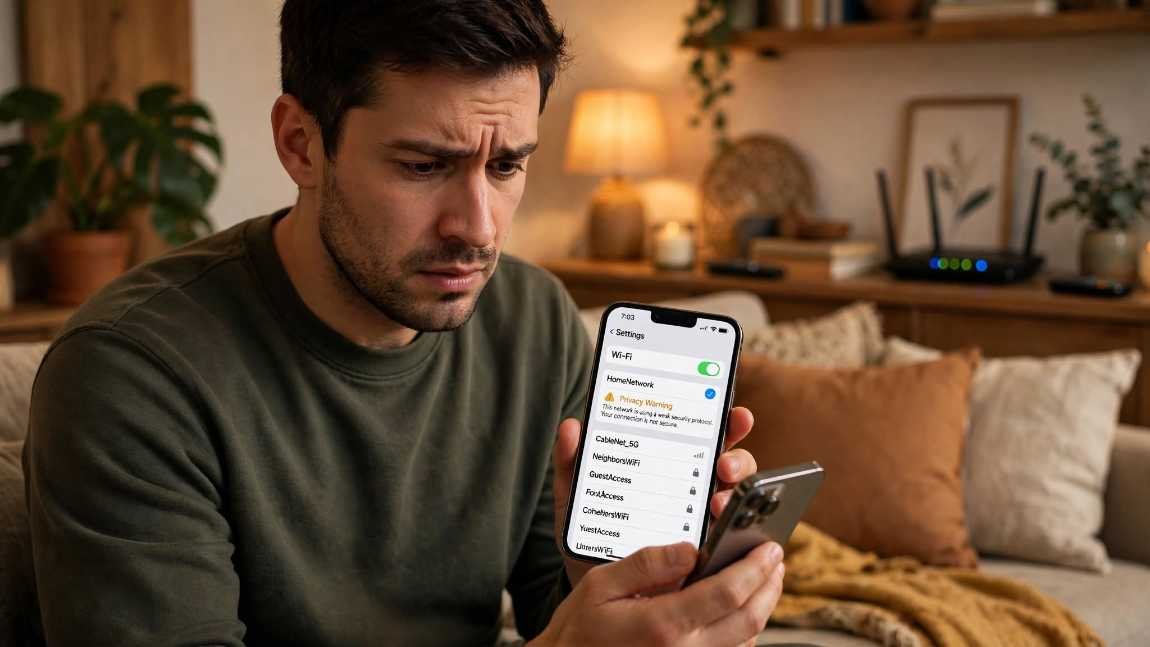
I stared at my iPhone screen in confusion yesterday morning. Right below my living room SSID sat an amber exclamation mark with a blunt message: “Privacy Warning.” Seeing that alert inside a crowded airport terminal or coffee shop makes sense, but why is my home wifi showing privacy warning inside my own living room?
My immediate reaction was panic. Had someone breached my gateway? Was my ISP tracking my private web traffic?
After digging into my network console and testing the connection across multiple Apple devices, I uncovered the exact mechanics behind the alert. It rarely points to a hack or an eavesdropper. In nearly every home setup, the issue boils down to a single toggle inside your network preferences or a clash between your router’s local DNS filtering and your device’s security protocols.
Here is the breakdown of why this happens, how I cleared the warning from my phone, and how to verify that your home network remains completely safe.
The Real Reason Your Device Flags a Home Network
Operating systems—particularly Apple’s iOS, iPadOS, and macOS—treat every Wi-Fi network with inherent zero-trust suspicion. When you connect, your phone negotiates access by sharing identification tokens. If your device detects that it cannot conceal its identity or that its encrypted inquiries are being rerouted, it flashes an alert.
Media Access Control (MAC) Addresses Explained
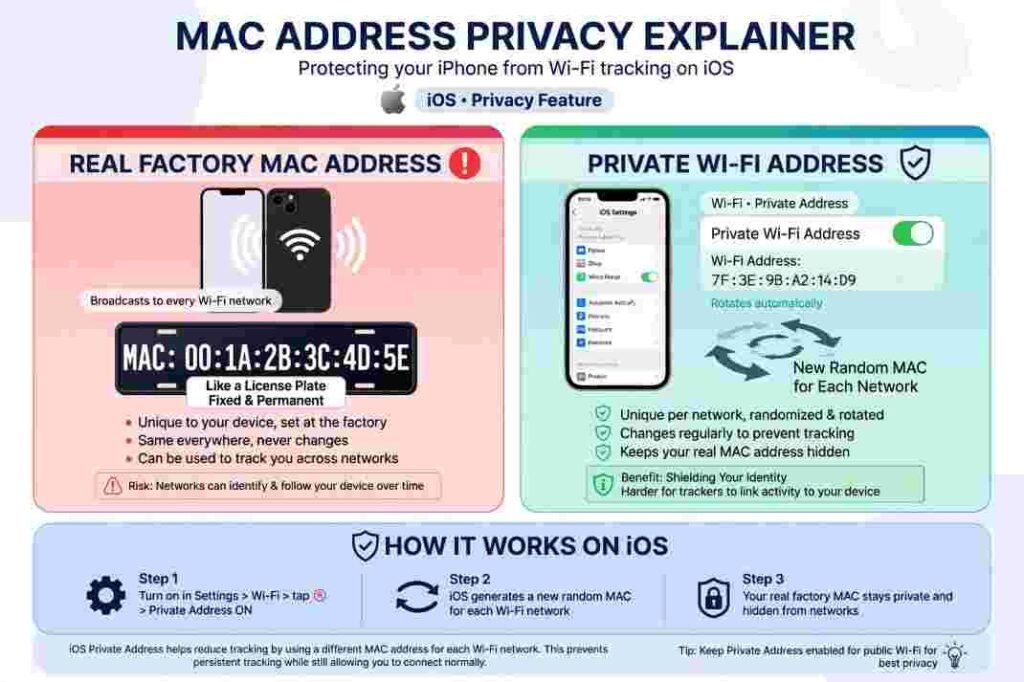
Every network interface card inside a phone, laptop, or tablet carries a permanent, hardware-level Media Access Control (MAC) address assigned during manufacturing. Think of your MAC address as a digital vehicle license plate.
When you connect to public hotspots, commercial network monitors record that identifier. They match your location history across retail stores and transit hubs. To stop this cross-location profiling, modern mobile operating systems introduce address masking. Just as you might turn off cross app tracking on android to keep ad brokers from stitching together your app history, mobile Wi-Fi settings use spoofed MAC addresses to keep local hardware monitors blind. The Electronic Frontier Foundation (EFF) highlights that hardware address tracking remains a primary vector for silent physical location surveillance across public spaces.
Why Apple Demands a Randomised Address
Starting with modern versions of iOS, Apple introduced the “Private Wi-Fi Address” protocol. Instead of broadcasting your iPhone’s real hardware MAC address, the operating system generates a rotating or unique pseudorandom MAC address specifically for that unique SSID.
If you turn off this feature—or if a software update resets network profiles—your device defaults back to broadcasting its factory hardware identifier. iOS instantly flags this state as a “Privacy Warning”.
The warning does not mean your Wi-Fi router was compromised. It simply informs you: “This device is using its factory hardware identifier, allowing network operators to trace your hardware.” On a personal, password-protected network where you own the hardware, this risk is negligible. However, leaving the setting enabled keeps your diagnostic log clean and maintains parity with best security practices outlined by the Cybersecurity and Infrastructure Security Agency (CISA).
How I Cleared the Wi-Fi Privacy Alert in Under 60 Seconds
Resolving this alert takes less than a minute directly on your phone. You do not need to reboot your modem or adjust physical wiring.
Follow these direct steps on an iPhone or iPad:
- Open your Settings app and select Wi-Fi.
- Locate your active home network connection.
- Tap the blue (i) information icon positioned next to the network name.
- Locate the Private Wi-Fi Address line item.
- Switch the toggle to ON (or select Fixed or Rotating depending on your iOS version).
- Your device will temporarily cycle the radio connection and rejoin the router.
Once reconnected, the yellow privacy notice vanishes immediately.
When the Alert Refuses to Go Away: Hidden DNS and Encryption Traps
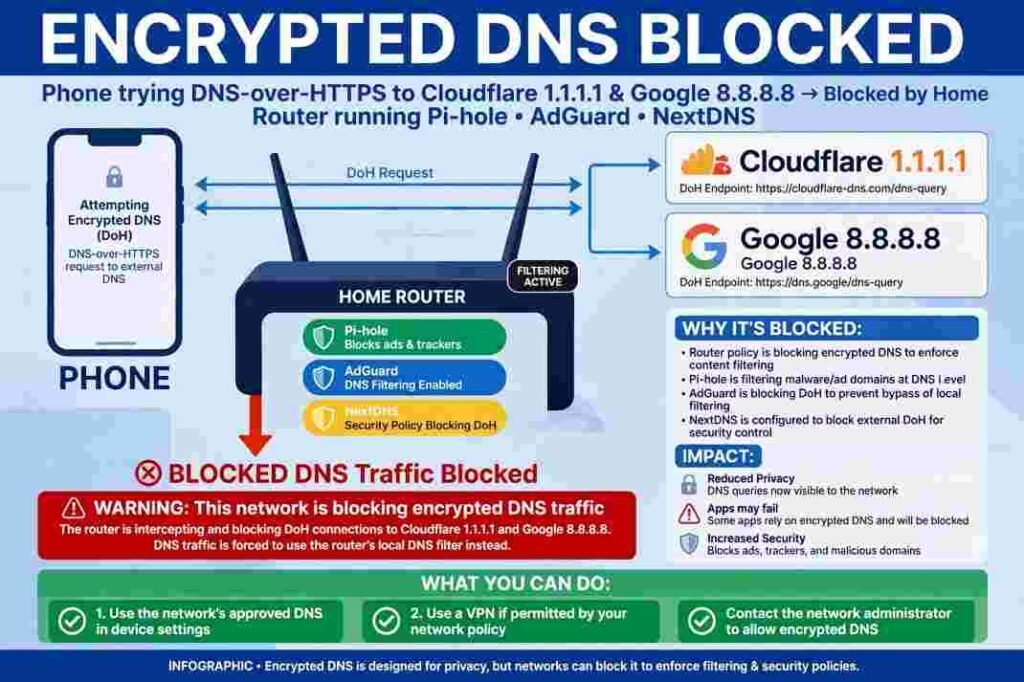
During my troubleshooting, re-enabling the private MAC address resolved the issue on my phone, but my partner’s tablet continued flashing a related banner: “This network is blocking encrypted DNS traffic.”
If your screen displays that phrasing, the root cause is distinct from MAC address spoofing.
Encrypted DNS Blocks and Local Resolvers
Modern operating systems attempt to encrypt lookups using DNS-over-HTTPS (DoH) or DNS-over-TLS (DoT). These protocols cloak website domain lookups so eavesdroppers on the same network cannot see the web hosts you query. The Cloudflare Learning Center provides detailed breakdowns showing how encrypted queries protect end-user sessions from local snooping.
When your home router runs internal content filters, parental shields, or recursive network sinks like Pi-hole, AdGuard Home, or NextDNS, the router intercepts outbound Port 53 or Port 853 queries. It terminates third-party encryption to block advertisement domains or adult content locally.
Your phone detects that its outbound encrypted DNS requests cannot reach public resolvers like Cloudflare (1.1.1.1) or Google (8.8.8.8). Sensing the interception, it posts the warning. If you purposefully maintain an ad-blocking gateway, you can safely ignore this banner. If you did not configure local filtering, verify your router’s parental control dashboard to ensure your ISP has not applied an automated content filter at the gateway level.
The Difference Between Privacy Warnings and Weak Security
Do not confuse a Privacy Warning with a Weak Security banner.
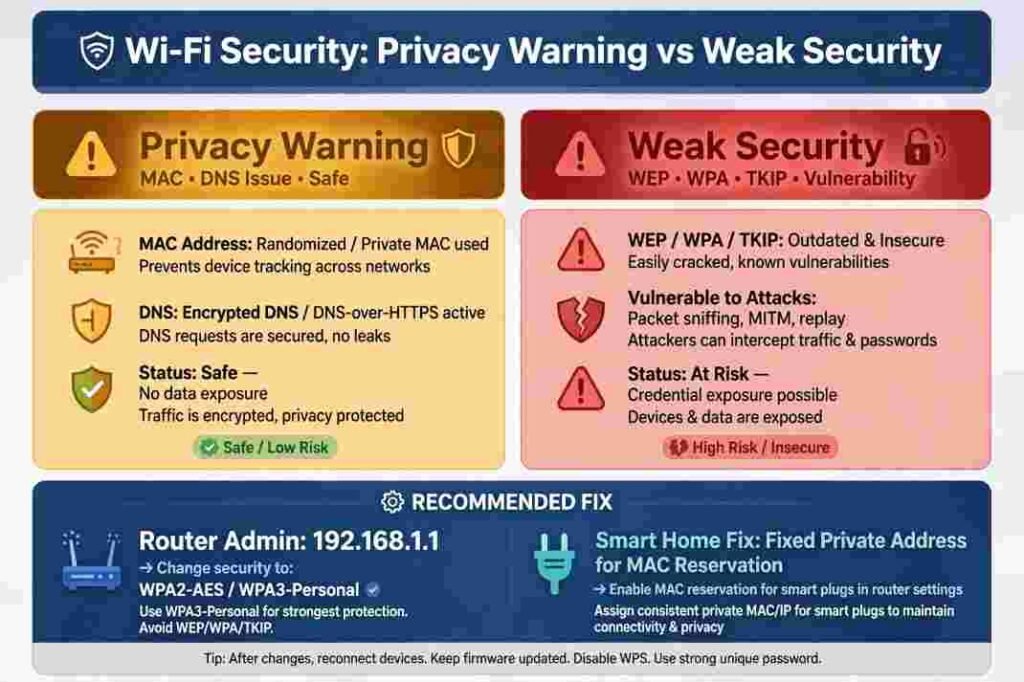
- Privacy Warning: Indicates unmasked MAC addresses or unencrypted local DNS handshakes. Your actual wireless traffic encryption remains intact.
- Weak Security: An alert signaling genuine cryptographic vulnerability. It appears when your router uses obsolete encryption standards like WEP, WPA, or WPA2-TKIP.
If you see “Weak Security,” open your router’s administrative console (typically accessed by entering 192.168.1.1 into any web browser). Navigate to the wireless configuration tab and change your encryption cipher to WPA2-PSK (AES) or WPA3-Personal, as mandated by Apple’s Wi-Fi router specifications. Avoid mixed TKIP configurations.
Smart Home Edge Cases: Resolving Router Conflicts
When re-enabling Private Wi-Fi Addresses on all household gear, a secondary complication often arises: IoT network dropouts.
Many modern homes rely on static MAC reservations to organize automation hardware. In my setup, binding appliances to fixed local IP addresses prevents communication dropouts across our smart ecosystem. For example, when adding a dedicated smart plug for monitoring energy consumption to balance heavy home studio loads, assigning a static IP via MAC reservation ensures continuous telemetry logging without dropped connections.
If your router relies on strict MAC Address Filtering for device whitelisting, enabling the “Rotating” private address feature on your phone will break its connection every few weeks. The router sees a brand-new hardware ID and rejects access.
To fix this friction:
- Use the Fixed private address option on home Wi-Fi instead of “Rotating”. This masks your factory identifier while keeping a consistent virtual address for your local router.
- Alternatively, disable private MAC addressing exclusively on your private home network while leaving it enabled for coffee shops, airports, and hotels.
No More Ghost Hunting: Take Control of Your Signal
Seeing a sudden security or privacy alert on personal hardware is unsettling, but in almost every home scenario, it is simply your phone asking you to turn its digital privacy masks back on. Toggle your Private Wi-Fi Address back to “Fixed” or “On,” verify your router uses modern WPA2/WPA3 AES encryption, and leave the paranoia behind. Take five minutes today to audit your router console and clear the alerts for good.
Frequently Asked Questions
1. Does a Wi-Fi privacy warning mean my home router is hacked?
No, it simply indicates that your device is sharing its real hardware MAC address or that network-level DNS filtering is active.
2. Is it safe to ignore a privacy warning on my home Wi-Fi?
Yes, on a private, password-protected home network you control, broadcasting your device’s native MAC address carries minimal risk.
3. Why did the warning appear suddenly without me changing any settings?
Major operating system updates often reset local network profiles or introduce stricter requirements for encrypted DNS traffic.
4. Will turning on Private Wi-Fi Address slow down my internet connection?
No, MAC address randomization takes place at the local hardware link layer and has zero negative impact on throughput or bandwidth speeds.